
Field Usage
What does Field Usage show?
Section titled “What does Field Usage show?”Field Usage finds references to selected fields in Salesforce metadata: dependencies, Apex classes and triggers, layouts, and reports. It lists Access grants separately. Use it to investigate where a field is referenced before changing its configuration.
Setup, report generation, saved reports, and PDF export require DQS Administrator access. This optional metadata analysis does not change quality scores or scan schedules.
Enable reports in Builder
Section titled “Enable reports in Builder”- Open the definition in Builder and save the fields in Scope.
- After Configure, open Field Usage (optional), before Review.
- Turn on Enable Field Usage reports. New and existing definitions start with reporting disabled. Turning the switch on selects all accessible fields in the saved Scope; deselect any you do not want to analyze.
- Search by field label or API name. Select all (labelled Select all matching fields in the screenshot) selects the entire available Scope, including fields outside the current search or page. Clear selection removes the selection. The list shows 25 fields per page.
- Keep at least one field selected and click Save in the Builder header before continuing.
Reopening enabled settings preserves the saved selection. Fields added to Scope later are not selected automatically; removed or inaccessible fields are excluded from new reports. If Scope has no accessible fields, save fields in Scope first or leave Field Usage disabled.
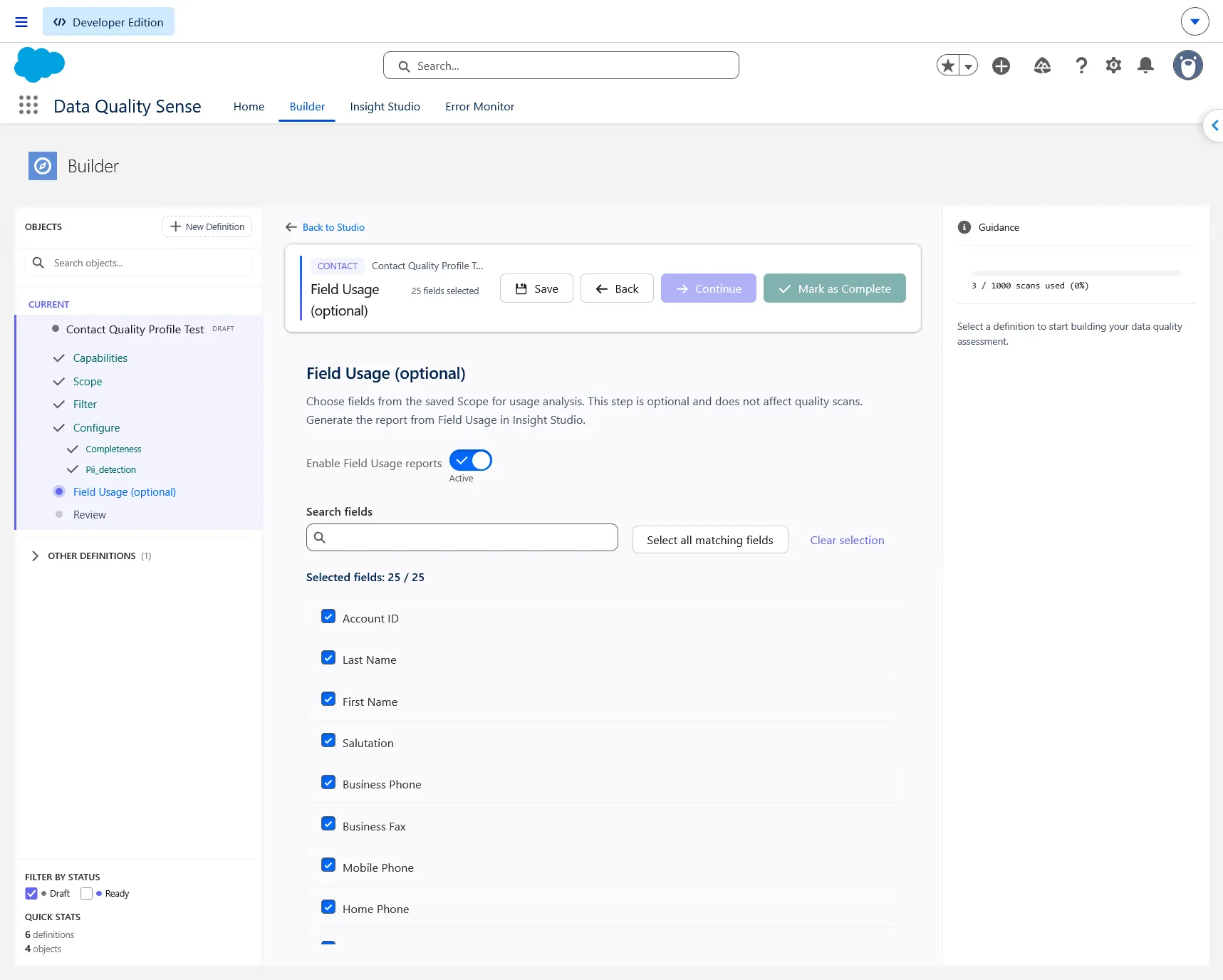
You can leave Field Usage disabled and still complete the definition. In Configure, Confirm Configuration confirms capability settings; Continue advances to Field Usage. Mark as Complete is available from Field Usage and Review once required configuration is complete and Field Usage changes are saved.
Run a report
Section titled “Run a report”- In Insight Studio, open Field Usage on an object or definition. In the object view, choose a definition first.
- Expand Current definition scope to check the fields selected for the next report.
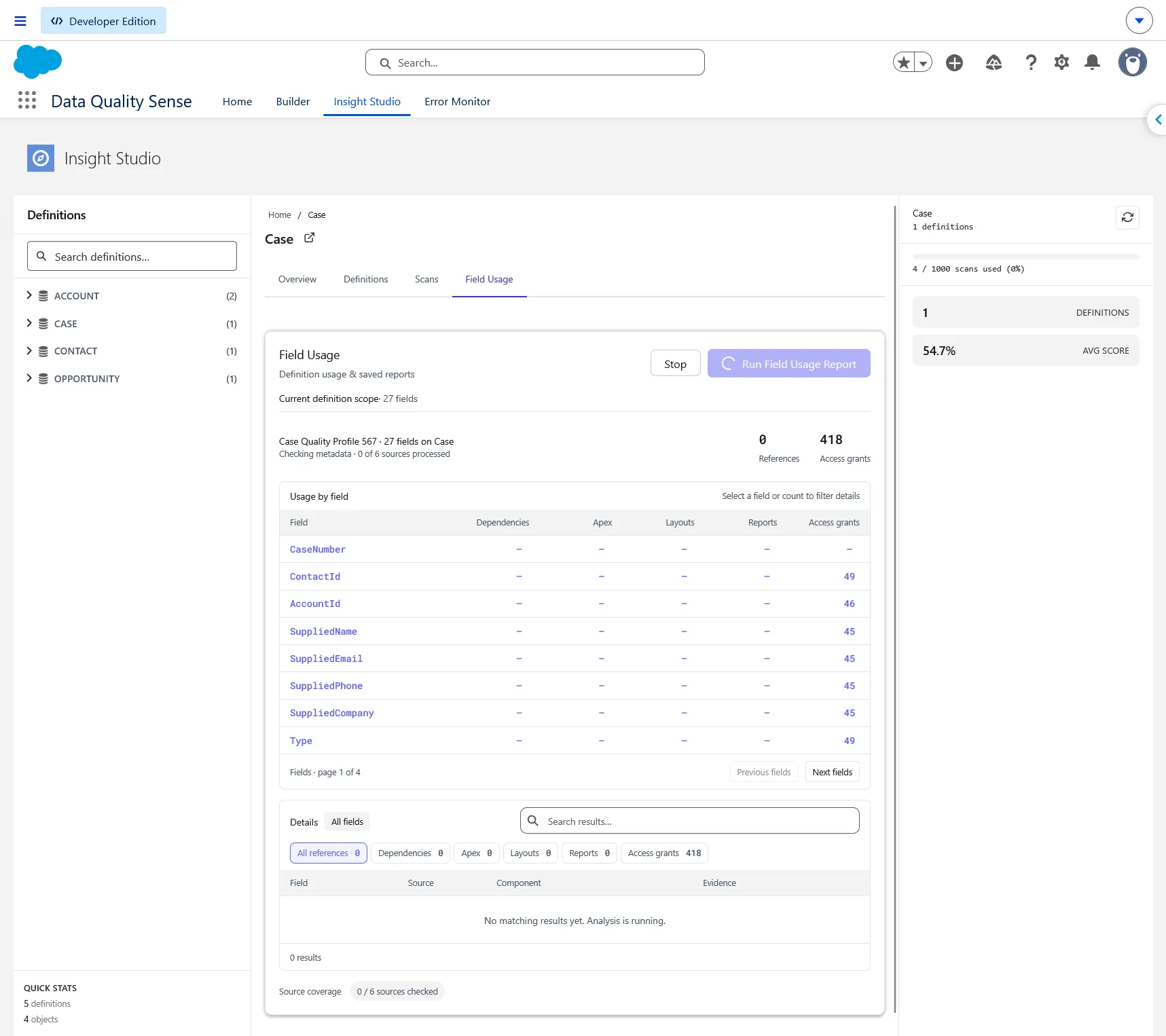
- Click Run Field Usage Report (or Run Report Again when a report is already open). The app checks the latest saved settings and analyzes that selection. Opening this tab only loads saved reports.
Results appear as sources are checked. Stop ends analysis and saves the results collected so far with a Stopped status. Leaving the view stops analysis without automatically saving an in-progress report.
Read the results
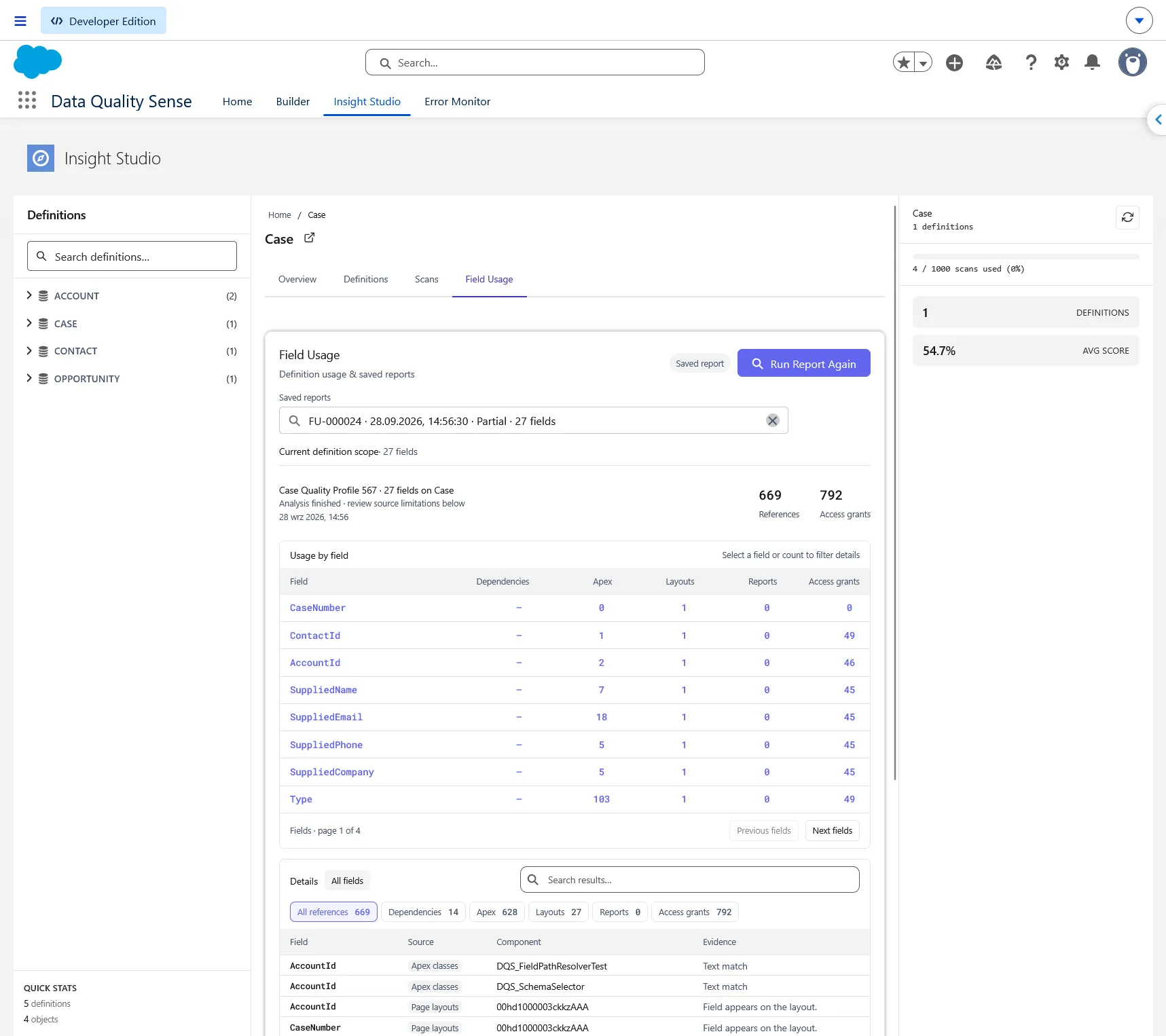
Section titled “Read the results”- Usage by field shows counts for Dependencies, Apex, Layouts, Reports, Needs review, and Access grants, with eight fields per page. Click a field or count to filter the details.
- Details shows Field, Source, Component, and Evidence, with search, source filters, and 15 rows per page. All references contains unique confirmed component/field references. Needs review separates uncertain matches; Access grants lists permissions. Neither category contributes to confirmed-reference totals.
- 0 means the source was checked without finding references. — means coverage is incomplete and no matches have been collected. Review source coverage even when a count is positive.
- Apex/SOQL analysis checks object and field context, excluding comments, label strings, and known references to other objects. Test-code references are hidden in the UI and excluded from totals. Older Text match evidence is treated as Needs review. A grant proves access, not actual use. Source counts can overlap when several sources confirm the same component; do not add them together.
Saved reports
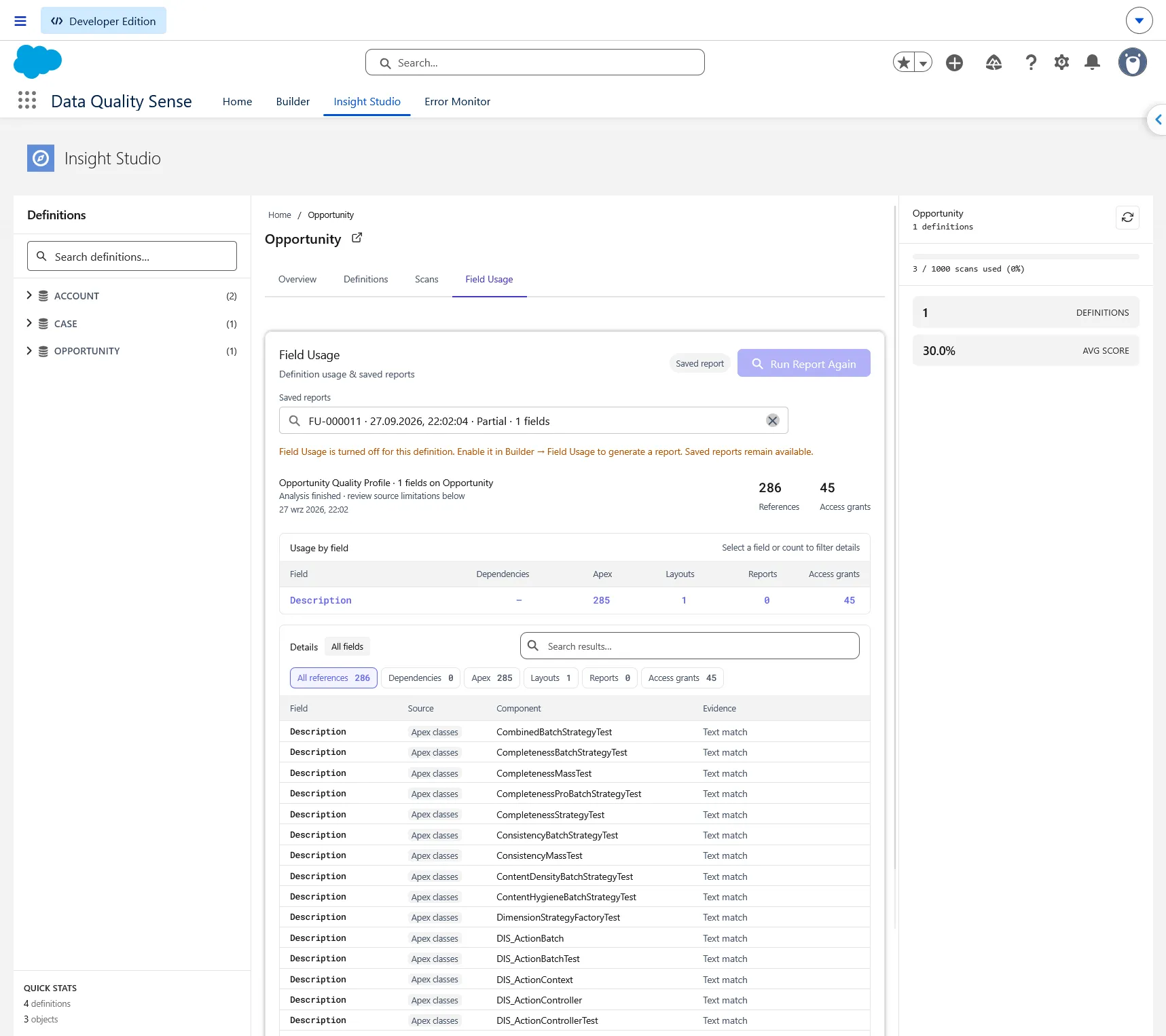
Section titled “Saved reports”Completed and explicitly stopped reports save automatically. The latest saved report opens when you return; Saved reports offers the latest 50 reports for the selected definition. Opening history does not rerun analysis. Each saved report retains its original fields and timestamp, separately from the current definition scope.
Disabling Field Usage in Builder prevents new reports while keeping saved reports readable. If saving fails, results stay visible and Retry Save retries without another analysis. Reports exceeding the save limit of 500,000 JSON characters remain visible but unsaved; select fewer fields for a new report.
Automatic reports after a manual scan
Section titled “Automatic reports after a manual scan”When an administrator starts a scan from the DQS app (including Complete & Run Scan), a Field Usage dialog opens automatically after the quality scan is successfully queued, if reporting is enabled for that definition. Keep the dialog open until analysis finishes, or use Stop to save partial results. Quality scanning continues separately in the background. Scheduled quality scans do not generate Field Usage reports; metadata analysis needs the open browser session.
Open referenced components
Section titled “Open referenced components”Click supported component names to open Apex classes/triggers, page layouts, Flow versions, permission sets, profiles, or reports in the same Salesforce org. Unsupported destinations stay as plain text, and Salesforce still checks your access. Older saved reports may need a fresh run to capture missing links, especially access-grant owners.
Download PDF
Section titled “Download PDF”Open a saved report and click Download PDF once saving and analysis have finished. The branded PDF is stored as a Salesforce File linked to the usage report and contains its saved scope, timestamp, coverage, counts, evidence, and supported links. It does not rerun analysis or export quality violations. Review and test evidence may appear in PDF details with explicit labels, but are excluded from confirmed-reference totals.
Coverage limits
Section titled “Coverage limits”Field Usage is a metadata reference report, not a record of runtime activity or a guarantee that a field can be deleted. Standard-field uses in Flow and validation rules can be missed: dependency lookup currently relies on custom-field identifiers. Dynamic Apex/SOQL, unresolved types, inaccessible metadata, and unsupported syntax can also leave coverage partial. Check Needs review and source coverage before changing a field; zero confirmed references is not proof of no use.
Screenshots on this page show an earlier report layout; the current report also includes Needs review, component links, and Download PDF.